

Review Implementation Bundle
Avni offers the ability to export the configuration and metadata from an implementation into a bundle (App Designer -> Bundle). This bundle can then be uploaded into another implementation if it is required to have the same metadata and configuration setup (Admin -> Upload ).

Since this a feature with widespread consequences if the wrong bundle is used on the wrong implementation, the implementer can review the changes that will be affected as a result of uploading a bundle before applying it. The option to review the changes is displayed after selecting the upload type as 'Metadata Zip' on the upload screen and uploading the bundle.
On clicking 'Review', the uploaded bundle is compared against the implementation that the user is currently logged into and a file by file list of differences is displayed on screen. The file listing categorises the changes as additions (green), modifications (orange), removals (red) or if completely new items will be created if the bundle is applied.
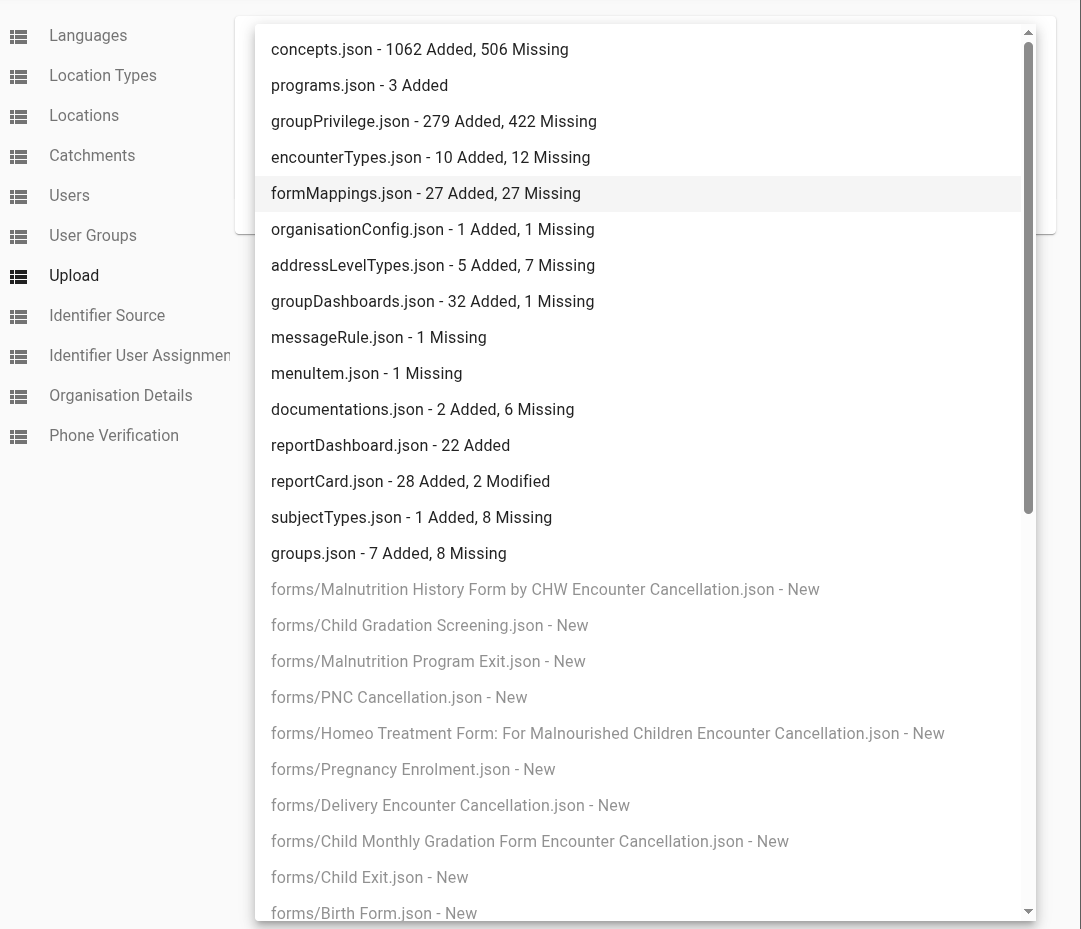
On selecting a file, the details of the changes in that file are shown. The implementer can use the 'Back to Upload' option to return to the upload screen after reviewing the changes to change the bundle file used or apply the bundle.
Concepts that carry an image
An image attached to a concept is not stored inside concepts.json. It travels as a separate file in the conceptMedia folder of the bundle.
So if the bundle being uploaded contains concepts.json, it must also contain the conceptMedia folder taken from a current export of the implementation being uploaded to. Export that implementation first, and copy its conceptMedia folder into the bundle before uploading.
If concepts.json is uploaded without it, the images on those concepts are removed. There is no error, and the review screen does not show it either — concepts.json itself has not changed, so the comparison finds nothing to report. The images then have to be re-attached one at a time in App Designer.
Updated 2 months ago