

Calendars
Configure working days, public holidays, and region-specific overrides so attendance reports distinguish expected absences from missed entries.
Overview
A Calendar in Avni captures the working pattern of a region — which days of the week are working days — plus the public holidays and region-wide working-overrides that apply to subjects in that region.
The calendar is the foundation that the Attendance feature builds on. When attendance is enabled on a Group Subject Type (for example, a school's Class), Avni uses the resolved calendar to decide which days are "expected sessions" — so reports can correctly distinguish "the form wasn't filled today" from "no class was expected today (it was a public holiday)".
If your organisation does not need attendance, you may not need to configure a calendar at all. If you are setting up attendance, configure the calendar first.
Global vs. per-location calendars
An organisation can be in exactly one of two calendar modes at any given time:
- Global mode — one calendar applies to every subject in the organisation. Use this when the organisation operates entirely in one region with one set of public holidays.
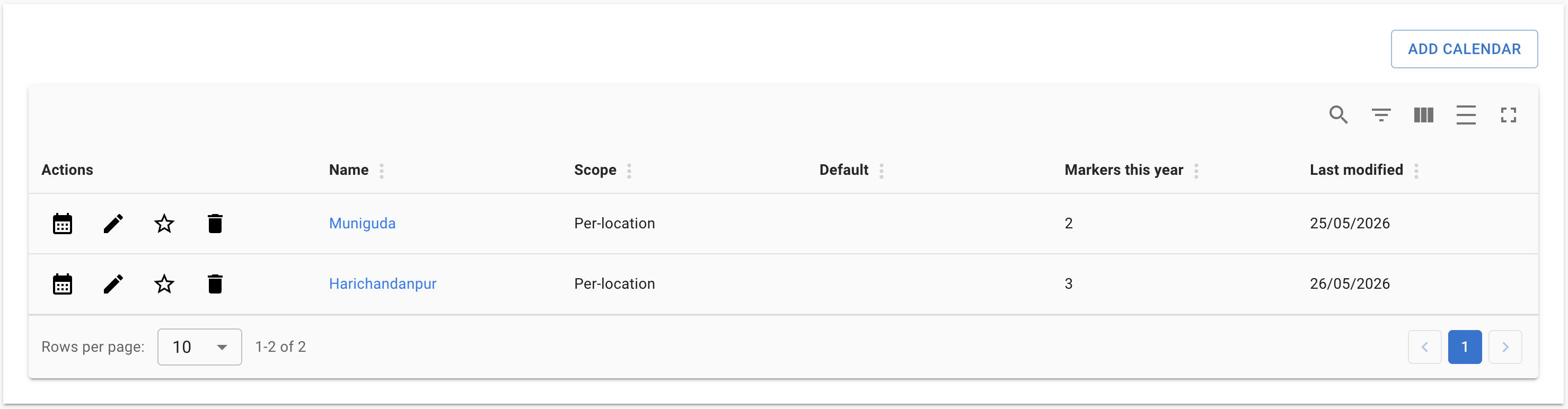
- Per-location mode — multiple calendars, each attached to a specific address-level node. Each subject resolves to its applicable calendar by walking up its address-level chain (leaf to root) and picking the first calendar attached.
For example, an organisation operating in Karnataka and Tamil Nadu would use per-location mode — one calendar attached to Karnataka and one attached to Tamil Nadu — so that the public-holiday lists for each state can differ.
The two modes are mutually exclusive within an organisation. To switch modes, all existing calendars must first be deleted.
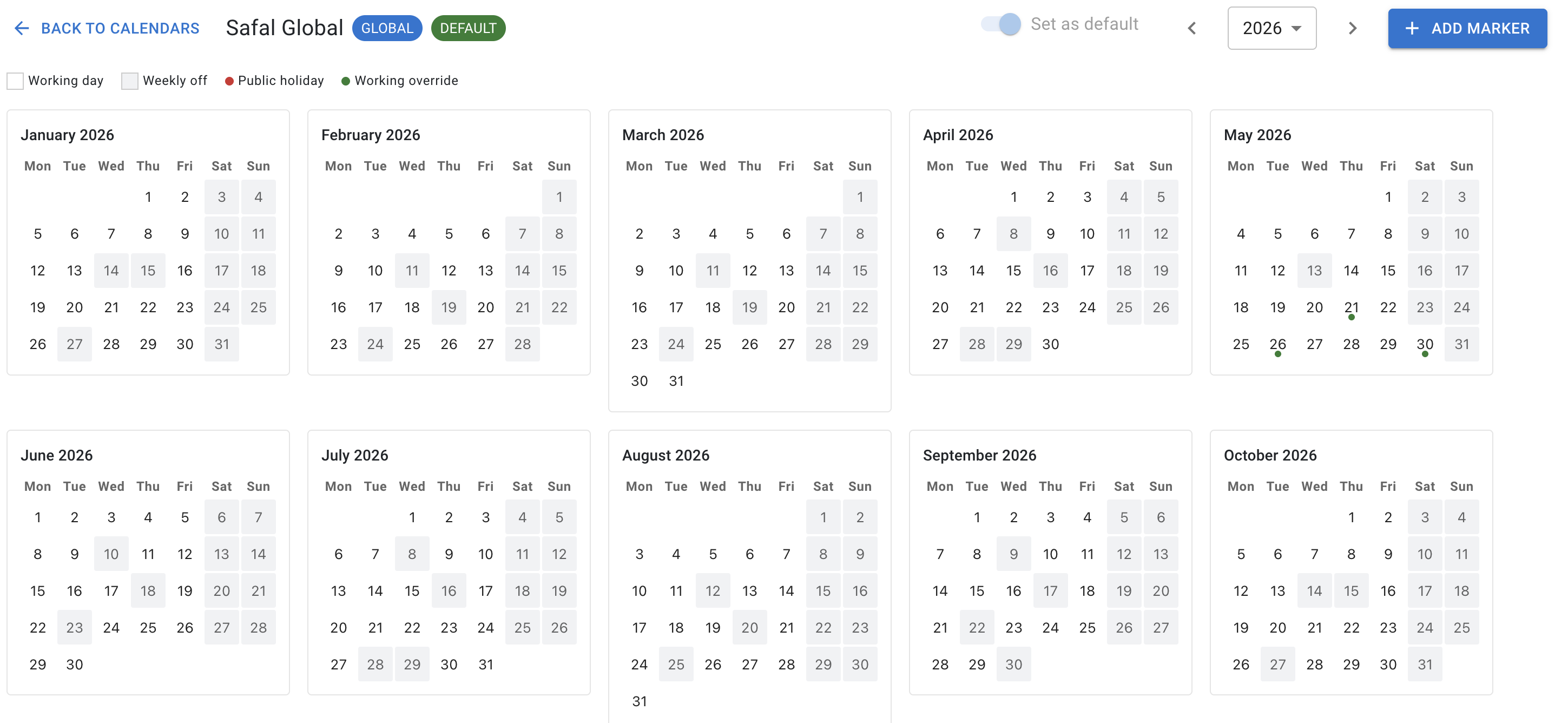
Global mode — one calendar applies org-wide; the single row carries a GLOBAL badge and a DEFAULT badge:

Per-location mode — one calendar per location node; each row's Scope column shows the address-level name:
Setting up your first calendar
Step 1 — Open the Calendars page
Navigate to App Designer → Calendars in the left navigation. This menu entry is visible only to users in a group that has the ManageCalendars privilege (see the section on privileges below).
Step 2 — Add the calendar
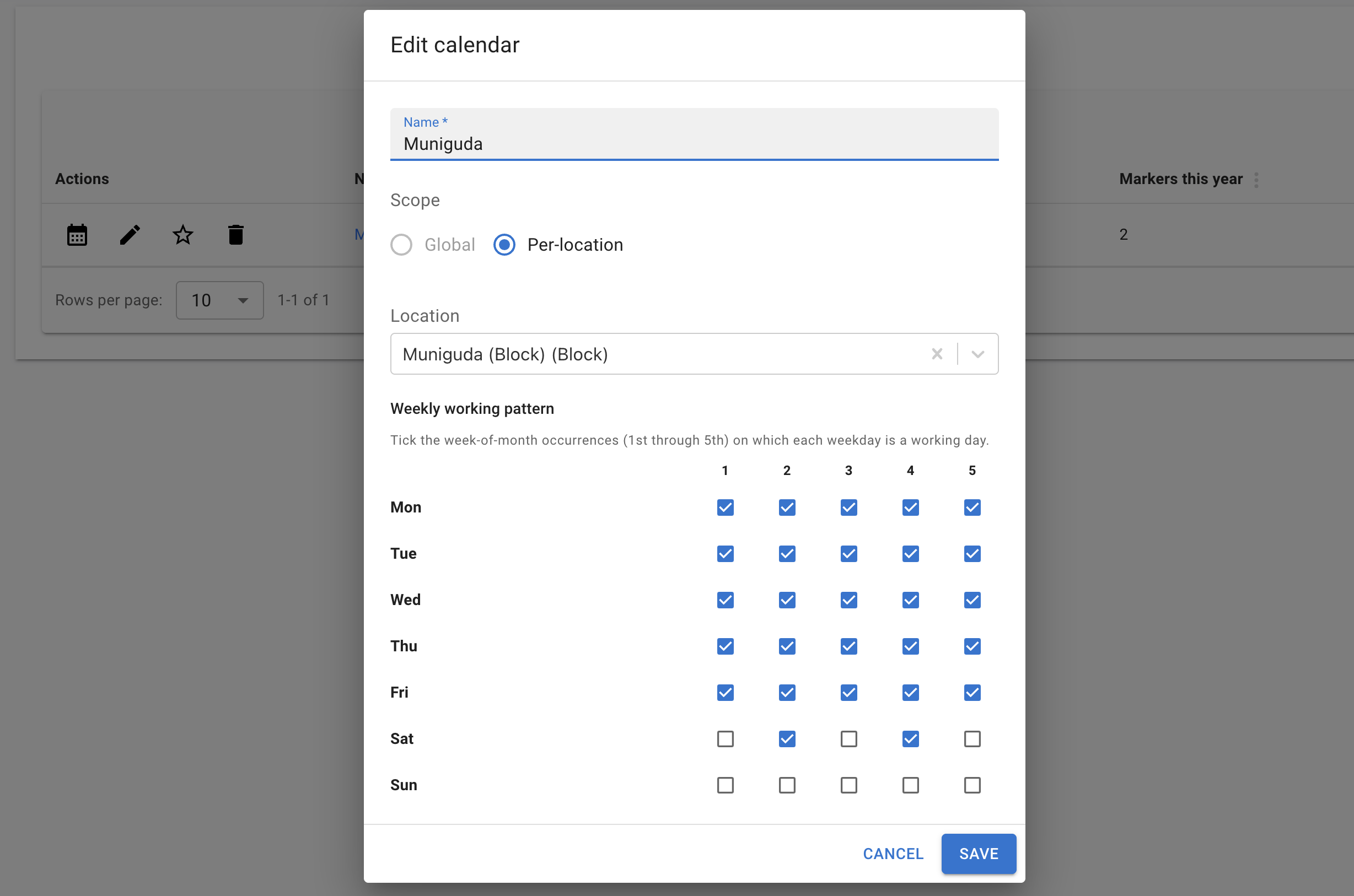
Tap + ADD CALENDAR. The Add Calendar modal opens with three fields:
- Name — a free-text name. For per-location calendars, use the location name (for example, "Karnataka").
- Scope — a radio between Global and Per-location. When you create your first calendar in an empty organisation, both options are available. After the first calendar is saved, the scope is locked to that mode for any subsequent calendars; switching modes requires deleting all existing calendars first.
- Location — an address-level picker, shown only when Scope is Per-location. Pick the address-level node that this calendar should apply to. Each location can hold at most one calendar.
- Weekly working pattern — a 7-row × 5-column grid of checkboxes. The rows are the days of the week (Mon to Sun); the columns are the occurrence within the month (1st, 2nd, 3rd, 4th, 5th). Tick a cell to mark that occurrence as a working day. Defaults to Mon–Fri all ticked (full Monday-to-Friday working week).
Step 3 — Save
Tap SAVE. The new calendar appears in the list.
Example — partial-Saturday working patterns
Many local block schedules don't follow a simple Mon–Fri or full-Mon–Sat pattern. The 7×5 grid lets you tick individual Saturday occurrences:
- Muniguda (shown in the screenshot above) works on 2nd and 4th Saturdays — tick
Satcolumns 2 and 4; leaveSatcolumns 1, 3, 5 unticked. - Bengaluru schools typically work on 1st, 3rd, and 5th Saturdays — tick
Satcolumns 1, 3, 5; leave 2 and 4 unticked.
Adapt the same idea for any custom pattern your organisation needs.
Marking holidays and working overrides
Once a calendar exists, you can mark individual dates as exceptions to the weekly pattern. There are two kinds of marker:
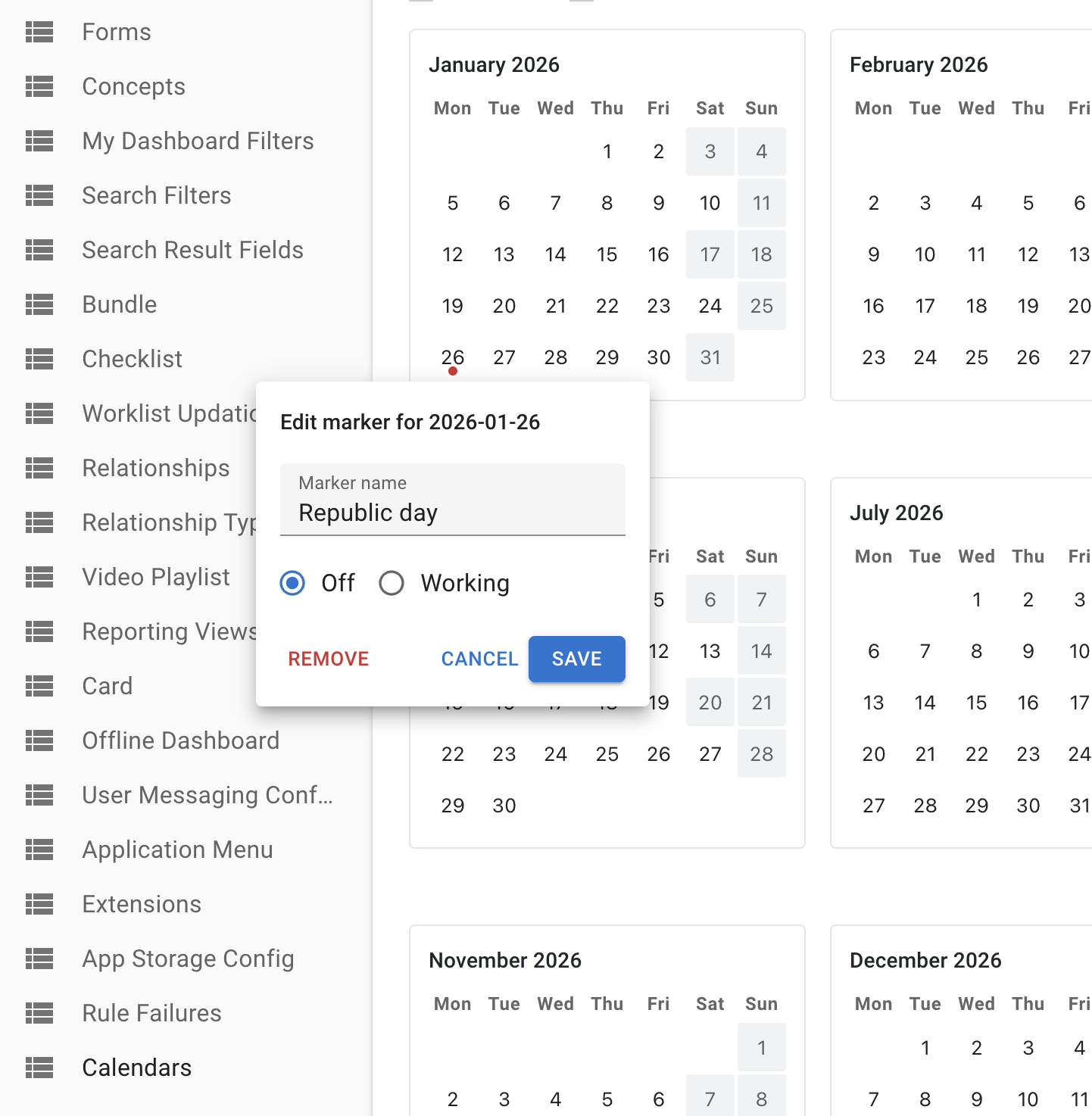
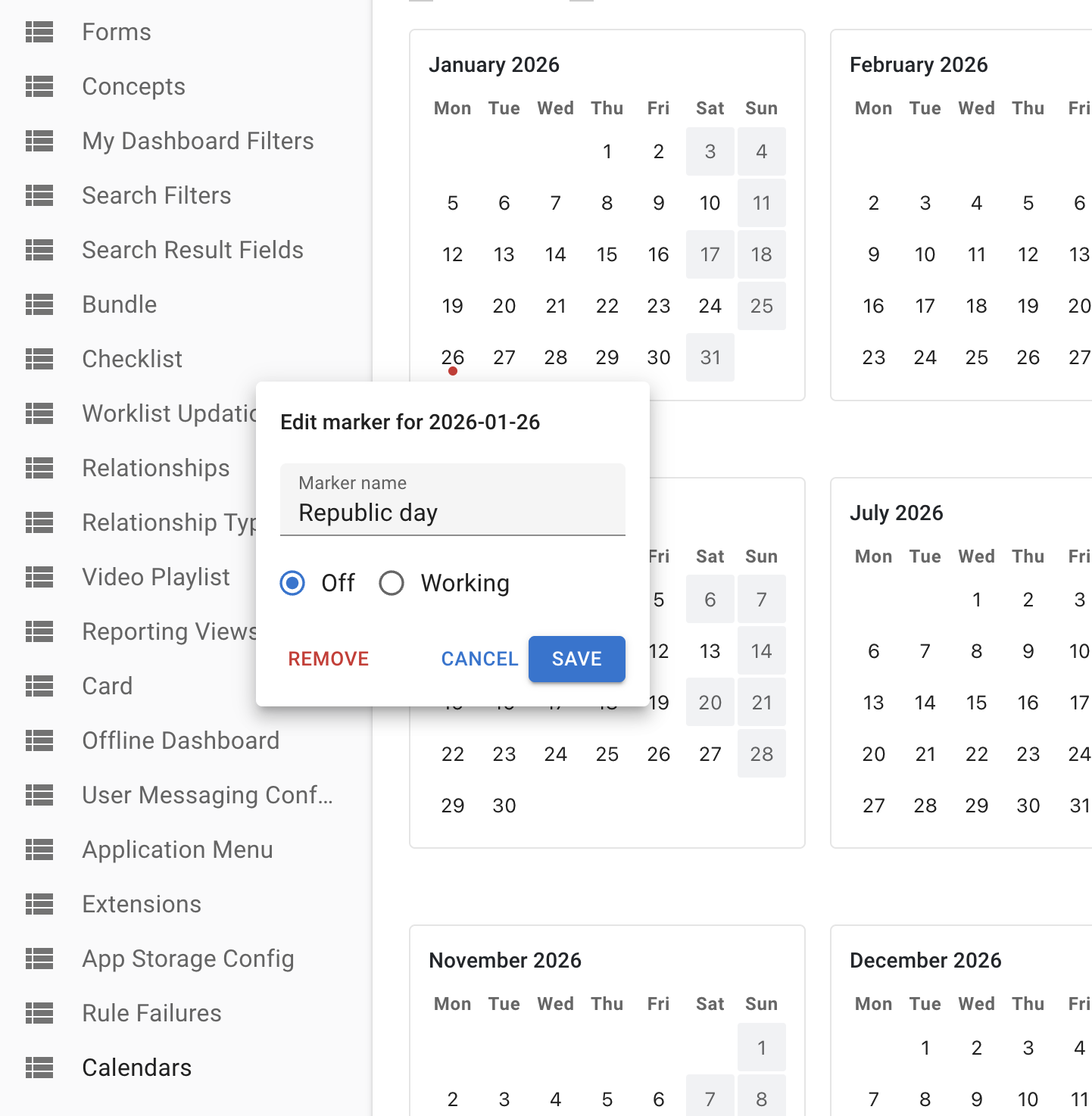
- Off (public holiday) — a date that is normally working per the pattern, but is not working in practice. Example: Republic Day (26 January) falls on a weekday but no schools open.
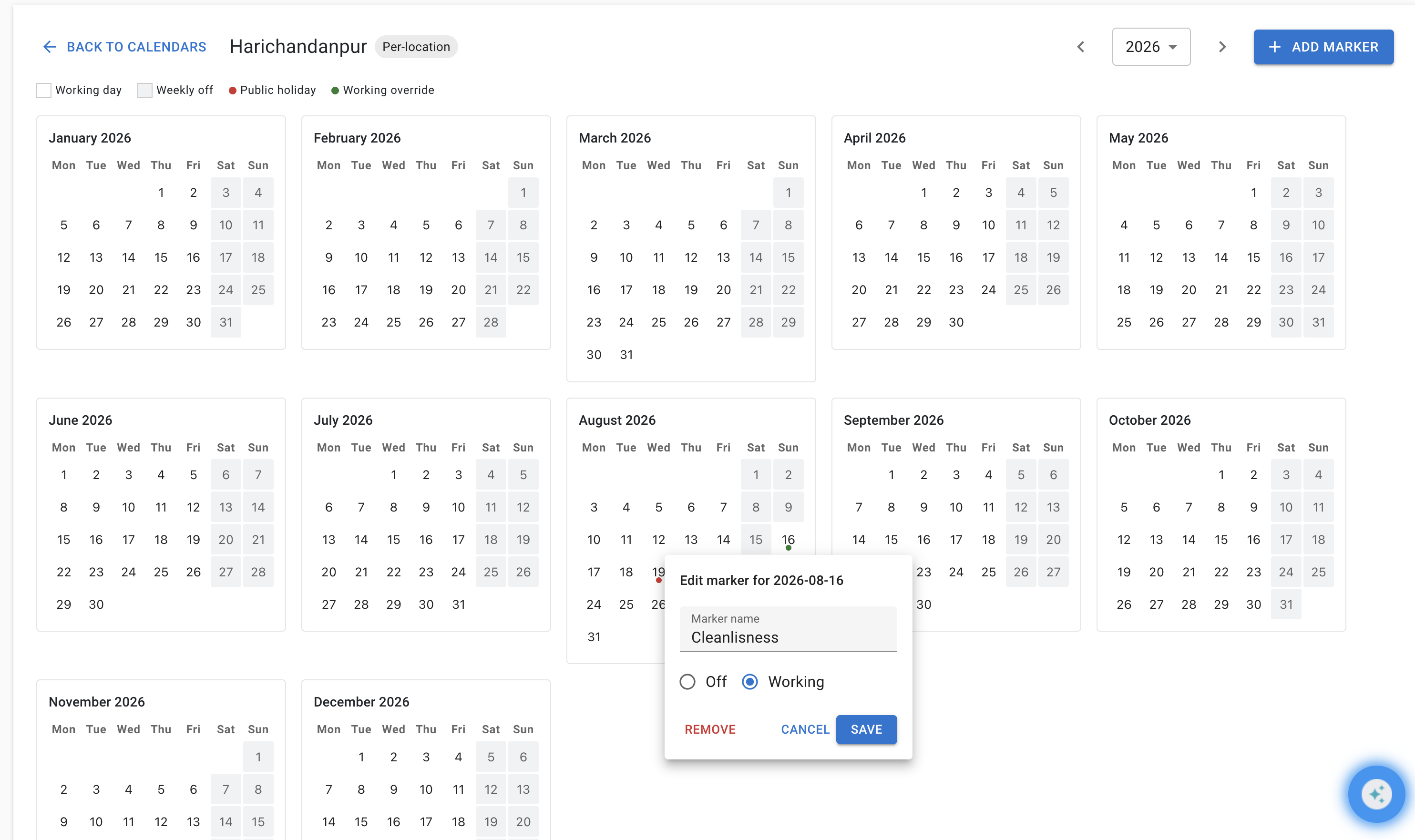
- Working (override) — a date that is normally not working per the pattern, but is working in practice. Example: a state-mandated make-up Saturday on a 2nd or 4th Saturday.
Drill into a calendar's grid view
From the Calendars list, click the calendar's name to drill in. The grid view shows a fully-rendered 12-month calendar for the selected year.
- Plain cells are working days.
- Lightly-shaded cells are weekly off (per the working pattern).
- Red-dotted cells are public holidays (Off markers).
- Green-dotted cells are working overrides.
Two ways to add a marker
Click any date cell in the grid. A small popover opens with an Off/Working radio and a Name field. The radio defaults to the right direction — clicking a working day defaults to Off; clicking a weekly-off day defaults to Working. Type a name (for example, "Republic Day") and save.
Off variant — clicking a working-day cell (e.g. 26 January) defaults the radio to Off:
Working variant — clicking a weekly-off cell (e.g. a Sunday) defaults the radio to Working:
Tap + ADD MARKER in the page header. This opens a modal with a date picker, allowing you to mark a date in a different year without scrolling. The modal has a Date picker (defaults to today), an Off/Working radio (defaults to Off — most markers are public holidays), and a Name field. If the picked date is in a year other than the one currently displayed, the grid auto-navigates to that year after save.
Editing or removing a marker
Click an already-marked cell. The popover shows the marker's name and type, with Edit and Remove actions.
Switching modes
To switch between global and per-location calendars, all existing calendars must first be deleted. This is intentional — Avni resolves a subject's applicable calendar from its mode-dependent rules, and mixing modes within one organisation would make the resolution ambiguous. After deleting all calendars, the Scope radio in the Add Calendar modal becomes available again.
Bundle transferability
Calendars and their date markers are transferred via Avni's existing app bundle export/import; voided calendars and markers propagate from UAT to prod so deletions carry over cleanly.
Privilege
The Calendars page in App Designer and all its CRUD actions are gated by the ManageCalendars privilege. Grant this privilege to a User Group via the standard Access Control flow — see Access Control.
What's next
Once you have configured at least one calendar (or are in global mode with a default calendar set up), you can enable attendance on a Group Subject Type. See Attendance.
Updated 5 months ago