

Attendance
Enable first-class attendance on Group Subject Types, with per-attendance-type reason vocabulary, follow-up encounters, and optional WhatsApp share.
Overview
Avni's Attendance feature is a first-class way to record presence and absence for members of a Group Subject Type (for example, students in a school's Class, or beneficiaries in a daily-meeting group). It replaces the older practice of capturing attendance as a subject-multiselect on a custom encounter form, and it lets reports distinguish "the form wasn't filled today" from "no class was expected today".
The model has three moving parts:
- Attendance Types — named attendances per Group Subject Type. A school taking three separate attendances per day (Morning Prayer, Math Class, Afternoon Reading) configures three Attendance Types. A group taking one daily attendance configures one.
- Sessions — one Session is created when a worker marks attendance (or marks that the class did not happen) for a given (group, date, attendance type) triple. Sessions are created lazily — no row exists until something is recorded.
- Attendance Records — one row per group member per Session, with status
PresentorAbsentand an optional reason.
Each Attendance Type carries its own behavioural config — reason vocabulary, follow-up workflow, share template — so different attendances within the same Subject Type can behave differently.
When to use it
Configure attendance when your organisation needs to:
- Track presence/absence of members of a group on specific dates.
- Distinguish "did not happen" from "happened but not marked" in reports.
- Auto-create a follow-up encounter (for example, a Home Visit) for any absent member the worker flags as needing follow-up.
- Optionally share an attendance summary on WhatsApp from the field worker's phone.
If your organisation only needs occasional presence tracking embedded in another form, attendance configuration may be overkill — a regular Encounter Type might be simpler.
Prerequisites
Before enabling attendance on a Subject Type, make sure:
- A calendar exists. See Calendars. Attendance uses the calendar to determine which dates are expected sessions.
- A Group Subject Type and its member Subject Type both exist. Attendance is configured on the Group Subject Type; the roster on the Android dashboard shows members of the member Subject Type. See Subject types.
- Two coded concepts are ready:
- A Session Outcome Reason concept — the answer-set for "why didn't the class happen" / "why was attendance not recorded".
- An Absence Reason concept — the answer-set for "why was this individual student absent today".
- The two examples in the Example coded concepts section below show typical answer sets.
- See Concepts for how to create coded concepts.
Enabling attendance on a Subject Type
Step 1 — Open the Subject Type's Advanced section
Navigate to App Designer → Subject Types, pick the Group Subject Type (for example, Class), and switch to the Advanced tab. You will see a new Attendance sub-block.
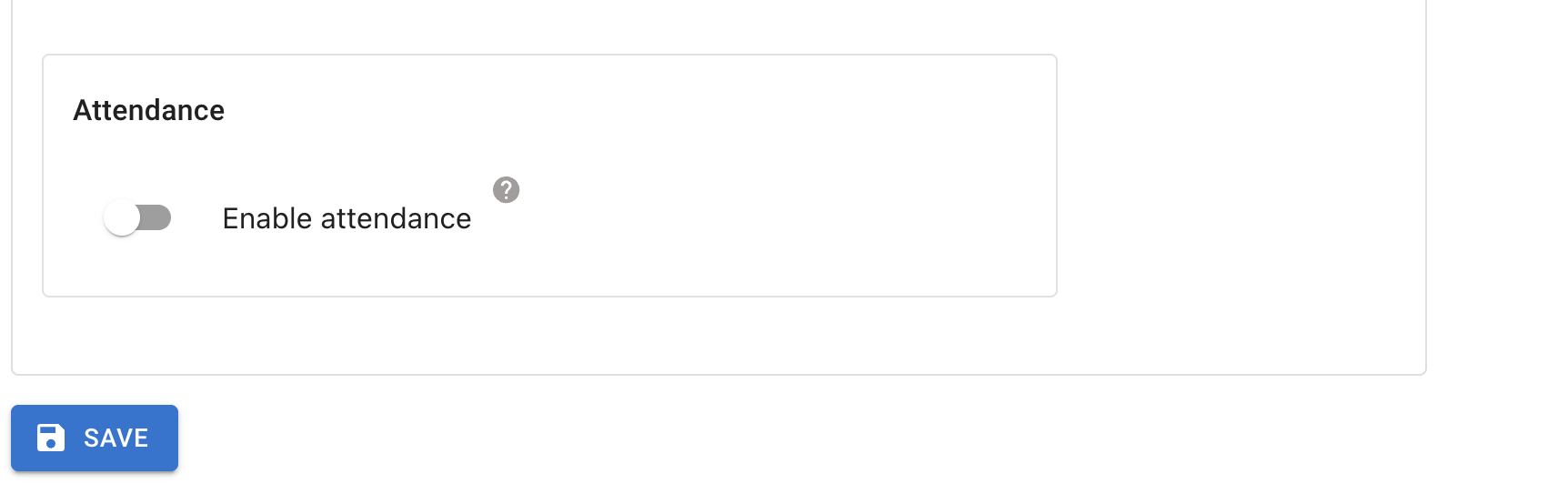
Step 2 — Toggle Enable attendance
Toggle Enable attendance on. Avni seeds a default Attendance Type named Attendance so the types list always has at least one row to edit. The seed row is incomplete — it has no reason concepts set yet — and the page shows a warning banner under the types list naming the incomplete type.
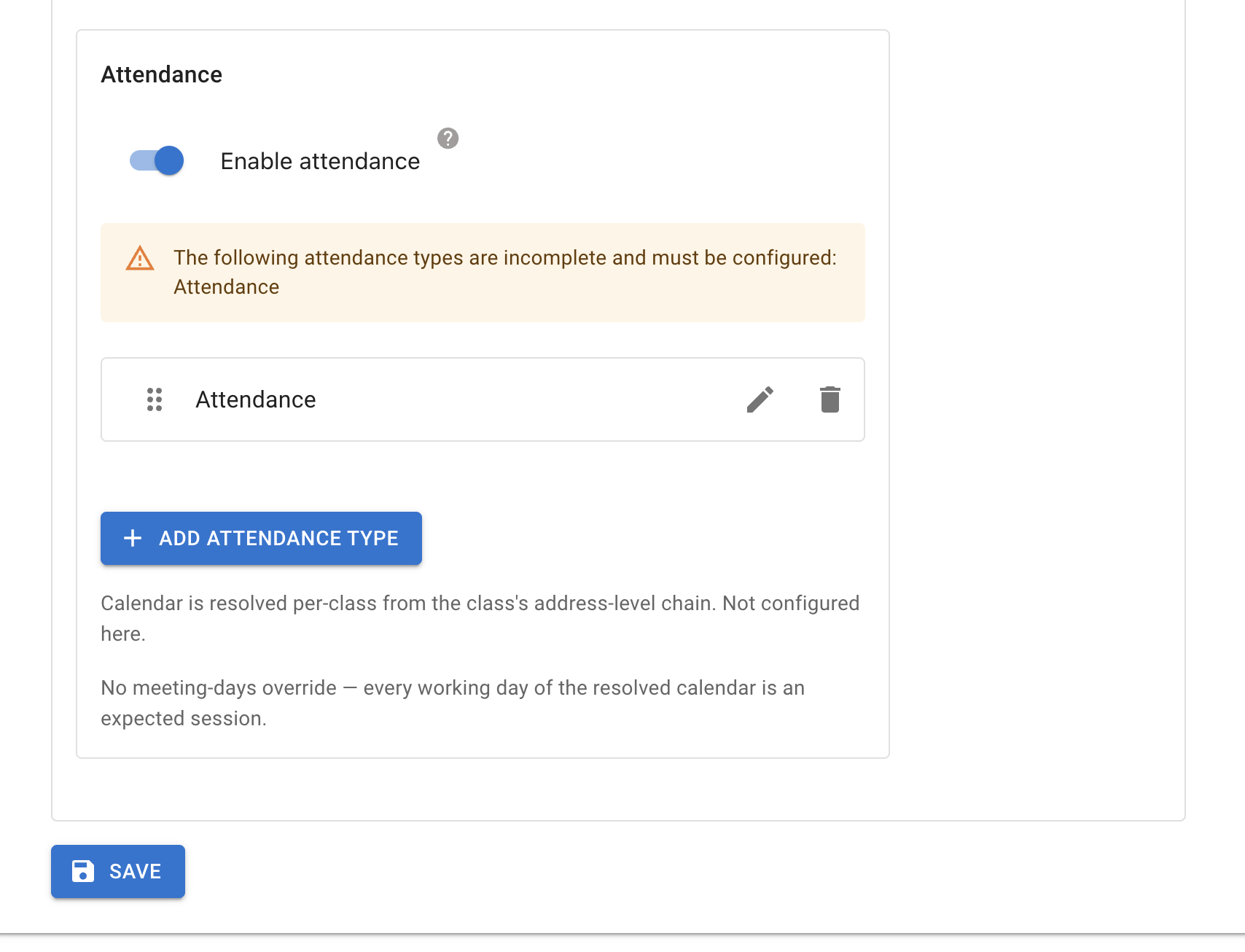
Step 3 — Edit the seed Attendance Type
Tap EDIT on the seed row. A modal opens with the per-Attendance-Type configuration fields. Fill the two required reason concepts (Session Outcome Reason and Absence Reason) and save. The warning banner clears once every Attendance Type has both reason concepts filled.
Important: Saving the Subject Type is blocked until every non-voided Attendance Type has both reason concepts filled. You will see a structured error pointing at any incomplete type.
Configuring an Attendance Type
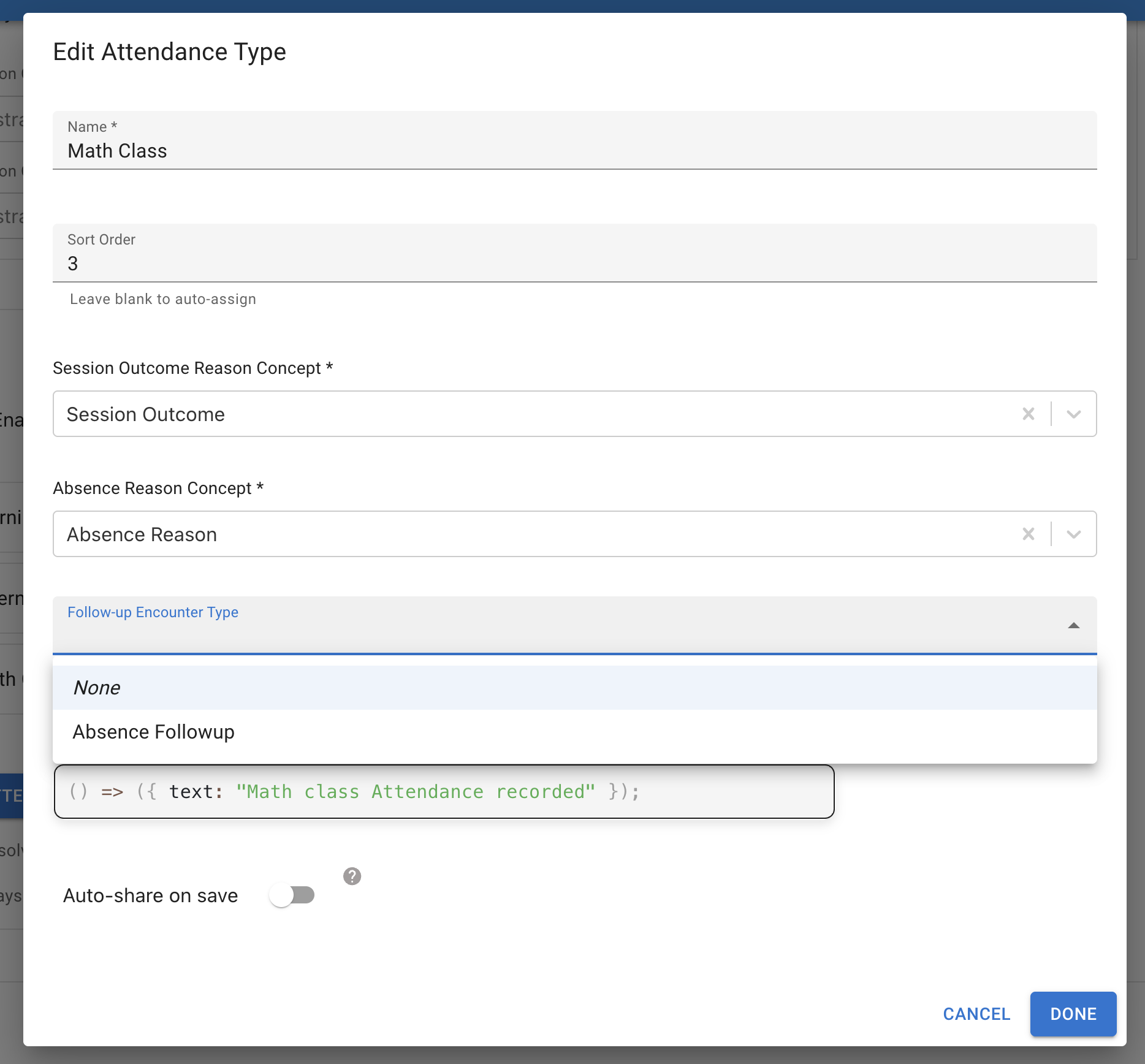
The per-Attendance-Type Edit modal has the following fields:
- Name (required) — for example, "Morning Prayer", "Math Class", or simply "Attendance".
- Sort order — controls the display order of types on the field worker's dashboard.
- Session Outcome Reason concept (required) — answers populate the Session-level reason picker. This is used in three flows: when the worker marks "Didn't Happen" (the class didn't take place), when the worker uses Mark anyway on a holiday/weekly-off day, and when the worker records "attendance not recorded" retrospectively.
- Absence Reason concept (required) — answers populate the inline per-student reason chips on the roster, shown whenever a student is toggled to Absent. The worker can select more than one reason per student.
- Follow-up encounter type (optional) — when set, an Absent student the worker ticks Needs follow-up generates a follow-up encounter of this type on save (due today; max date today + 2 days). When unset, the Needs-follow-up checkbox has no effect and no auto follow-up is created.
- Share rule (inline JS) (optional, Android only) — a JavaScript snippet that builds the share content for a saved Session. See Example share rule below.
- Auto-share on save (optional, Android only) — when on, the Android share sheet pops up automatically after every saved Session of this type. When the share rule is empty, the built-in default template is used.
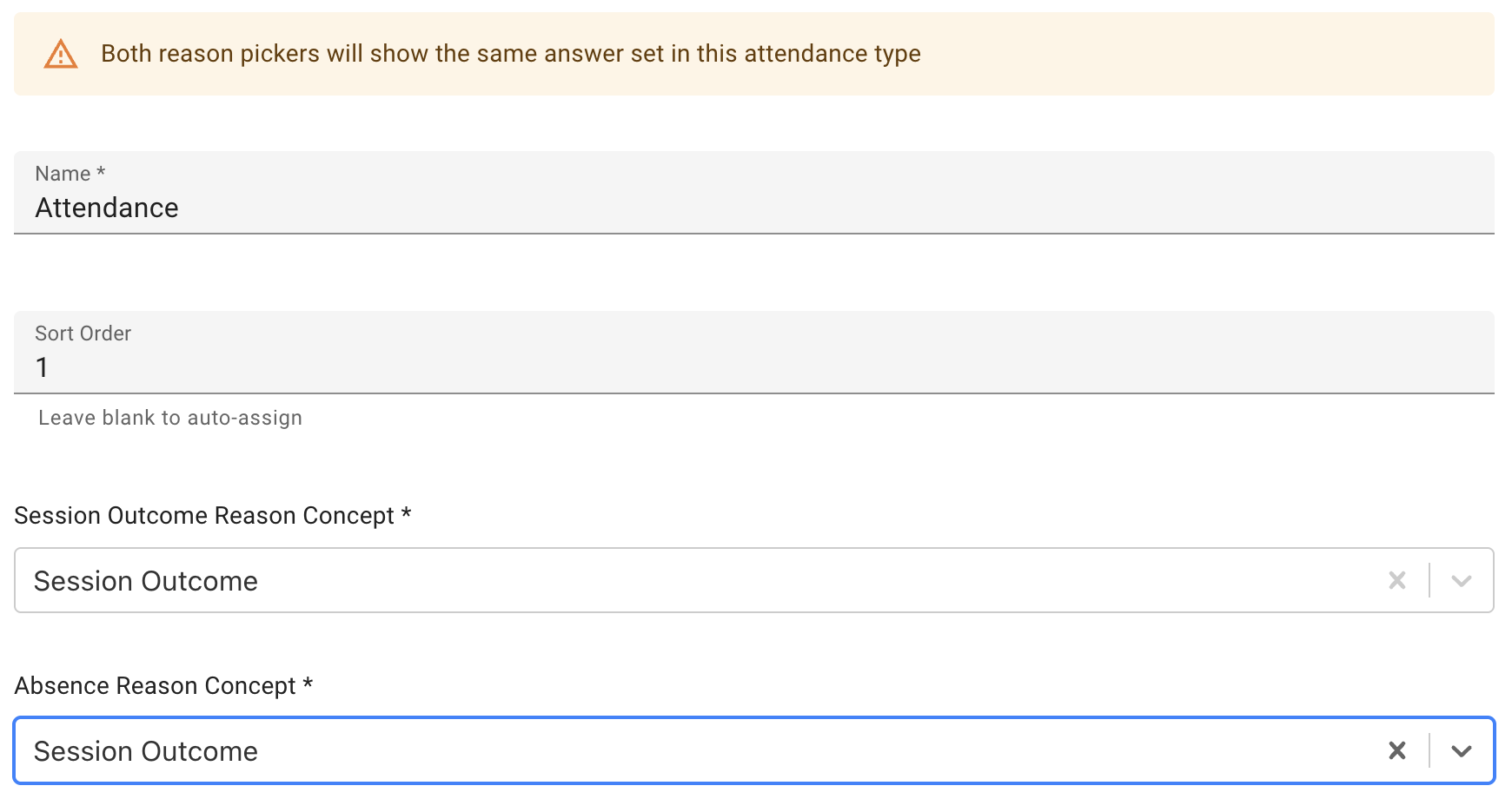
Tip — using the same concept for both reason fields. You can pick the same coded concept for Session Outcome Reason and Absence Reason on a single Attendance Type. The modal will show a warning banner ("Both reason pickers will show the same answer set in this attendance type") but the save is allowed — useful when an organisation's session-level and per-student reasons genuinely overlap.
Example — Gubbachi school's three-attendances-per-day model
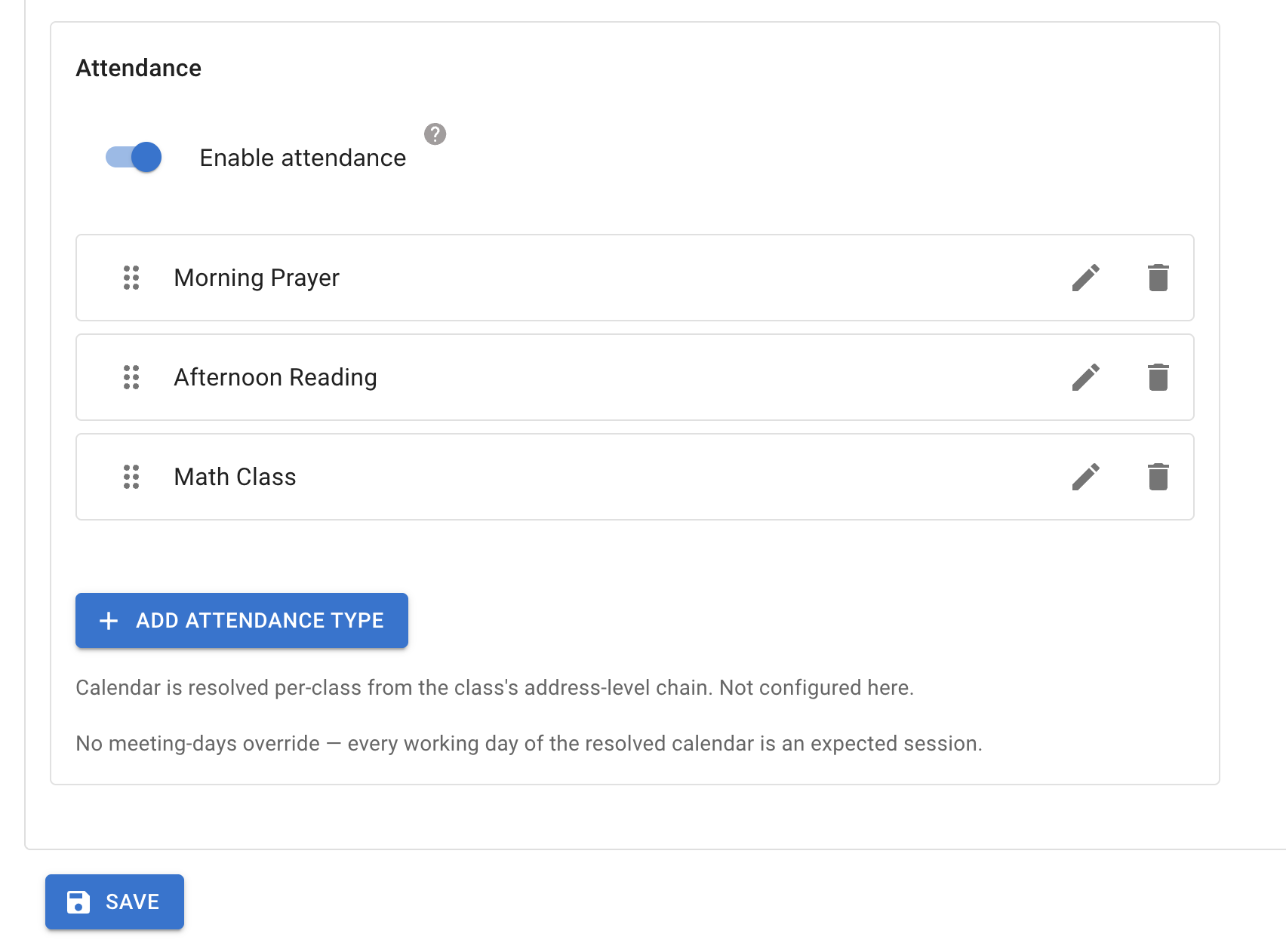
A Gubbachi school configures three Attendance Types on its Class Subject Type:
- Morning Prayer — Session Outcome Reason: "School Session Outcome"; Absence Reason: "Student Absence Reason"; Follow-up encounter type: (none); Auto-share: off.
- Math Class — same reasons as Morning Prayer, plus Follow-up encounter type: "Home Visit"; Share rule configured; Auto-share: on.
- Afternoon Reading — same as Math Class but with Follow-up encounter type: "Phone Call".
Each Attendance Type carries its own config, so they can differ even though they live inside the same Subject Type.
Example coded concepts
The two reason concepts you pick on each Attendance Type need to have sensible answer sets. Below are the recommended starter sets — adapt these to your organisation's vocabulary.
Session Outcome Reason concept
This concept's answers populate the Session-level reason picker. Recommended answer set spans three semantic groups so a single picker can serve every Session-level flow for this attendance type:
- Class did not happen — used when the worker marks "Didn't Happen":
- Teacher absent
- Power cut
- Strike / civil disruption
- Weather
- Equipment failure
- Holiday not on calendar
- Class held outside expectation — used when the worker uses Mark anyway on a holiday/weekly-off day:
- Make-up class
- Special event / workshop
- Festival celebration
- Other override
- Attendance not recorded — used when the worker retrospectively marks a past working-day session as not-recorded (forgot to mark, lost app access, etc.):
- Marker absent
- Marker unable to access app
- Forgot to mark
- Other no-data reason
Absence Reason concept
This concept's answers populate the per-student reason chips that appear beneath any roster row toggled to Absent — the worker can tap one or more. The recommended answer set is simpler:
- Sick
- Family event
- Transport
- Personal
- Other
Reasons are optional and independent of follow-up. A follow-up encounter is created on save only when the worker ticks the separate Needs follow-up checkbox on an Absent student (and the Attendance Type has a follow-up encounter type configured) — not based on whether a reason was picked.
Tip: Different Attendance Types within the same Subject Type can pick different reason concepts — for example, Morning Prayer could use a simple absence-reason set while Math Class uses a richer set that includes academic-specific reasons. The flexibility is intentional.
Example share rule
If you want a custom WhatsApp/Text share message instead of Avni's default template, configure a share rule on the Attendance Type. The rule is inline JavaScript that runs when the field worker taps Share (or when auto-share fires) on a saved Session.
Here is a copy-pasteable starter:
({ params }) => {
  const { entity: session, attendanceRecords, summary } = params;

  // Build a list of absent students with their reason (if recorded).
  const absent = attendanceRecords
    .filter(r => r.status === 'Absent')
    .map(r => r.studentName + (r.reasonName ? ' (' + r.reasonName + ')' : ''));

  const text =
    '📋 ' + summary.groupName + ' — ' + summary.attendanceTypeName + '\n' +
    'Date: ' + summary.scheduledDate + '\n' +
    'Present: ' + summary.presentCount + ' · Absent: ' + summary.absentCount + '\n\n' +
    (absent.length
      ? 'Absent students:\n• ' + absent.join('\n• ')
      : 'Everyone present 🎉');

  return { text };
};
The rule receives params with:
entity— the saved Session.attendanceRecords— an array of{ studentName, status, reasonName?, followUpEncounterUUID? }rows, one per group member.summary— a derived helper object with{ groupName, attendanceTypeName, scheduledDate, presentCount, absentCount, presentNames, absentNames, sessionStatus, sessionNotes }.servicesand other common-rule helpers (same as other Avni rules).
The rule returns { text?, data? }:
text— used when the user picks "Share as Text". If omitted, Avni falls back to a built-in default text template.data— used when the user picks "Share as PDF". If omitted, Avni falls back to a built-in default Session PDF template.
For more on writing JavaScript rules in Avni, see Writing rules.
How field workers mark attendance (Android)
This section is a brief tour of the end-user experience. The exact look-and-feel may evolve — focus on the behaviour rather than pixel-perfect layouts.
Opening the attendance sheet
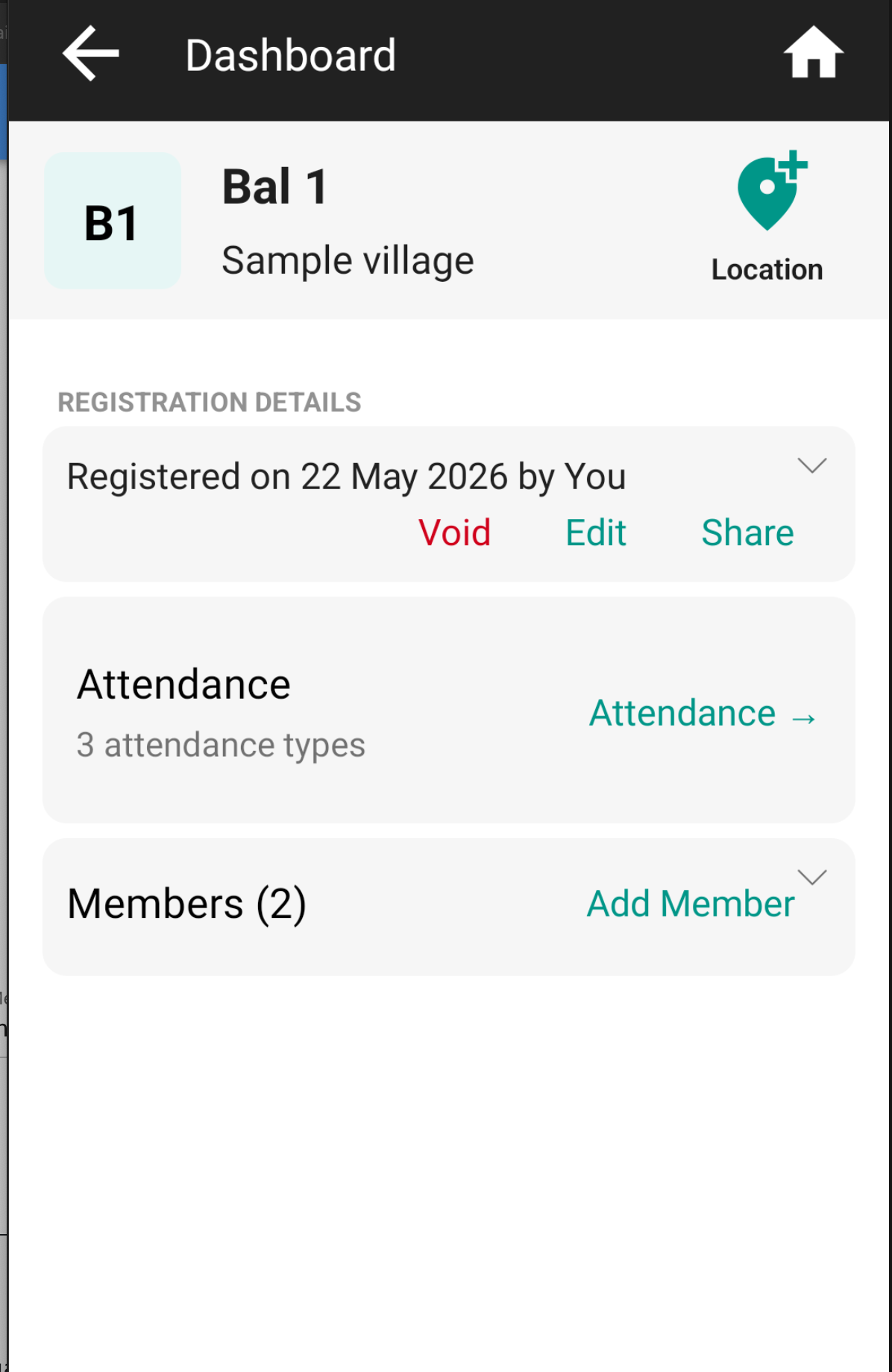
The field worker opens a group's dashboard and taps the Attendance button. This button is visible only when the group's Subject Type has attendance enabled and the user has edit-subject privilege.
Picking a date and an attendance type
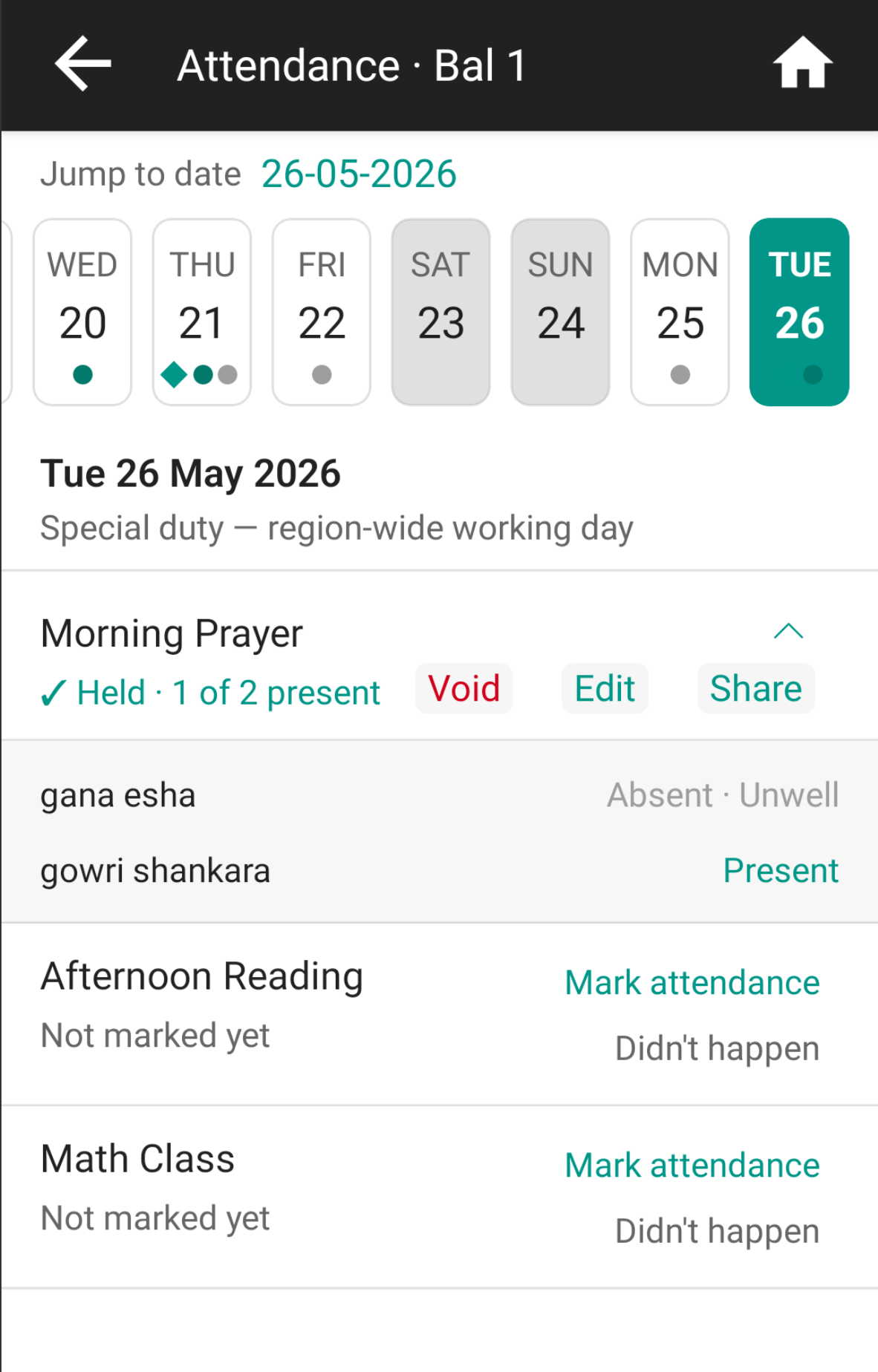
The sheet opens with a short horizontal date strip (last 14 days plus today) and a row per configured Attendance Type. Each row shows the status for the selected date: "Not marked yet" with MARK / DIDN'T HAPPEN buttons, or "Held — X of Y" with an Edit link, or "Didn't happen — [reason]". Tapping any past day on the strip lets the worker mark retroactively.
Marking a Held session
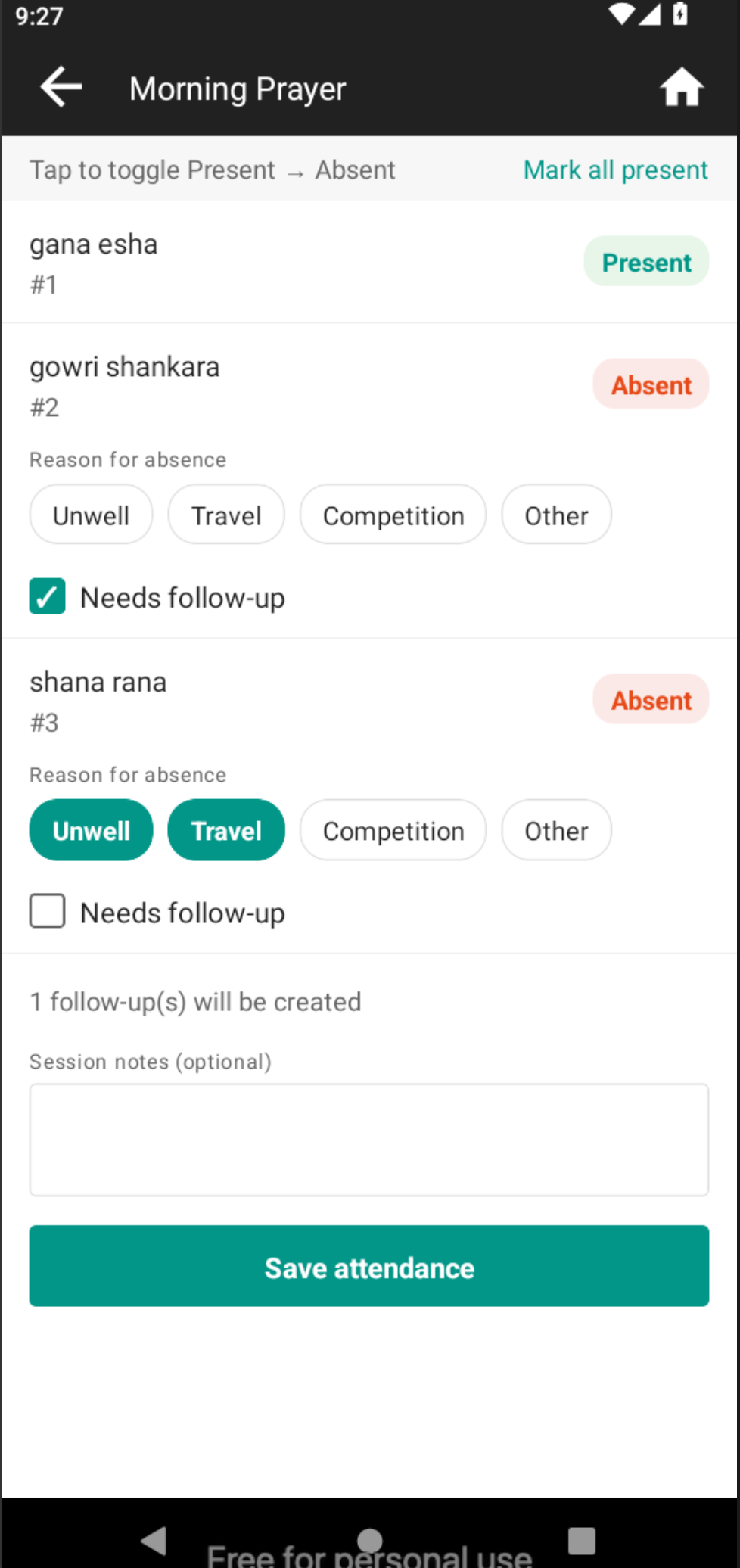
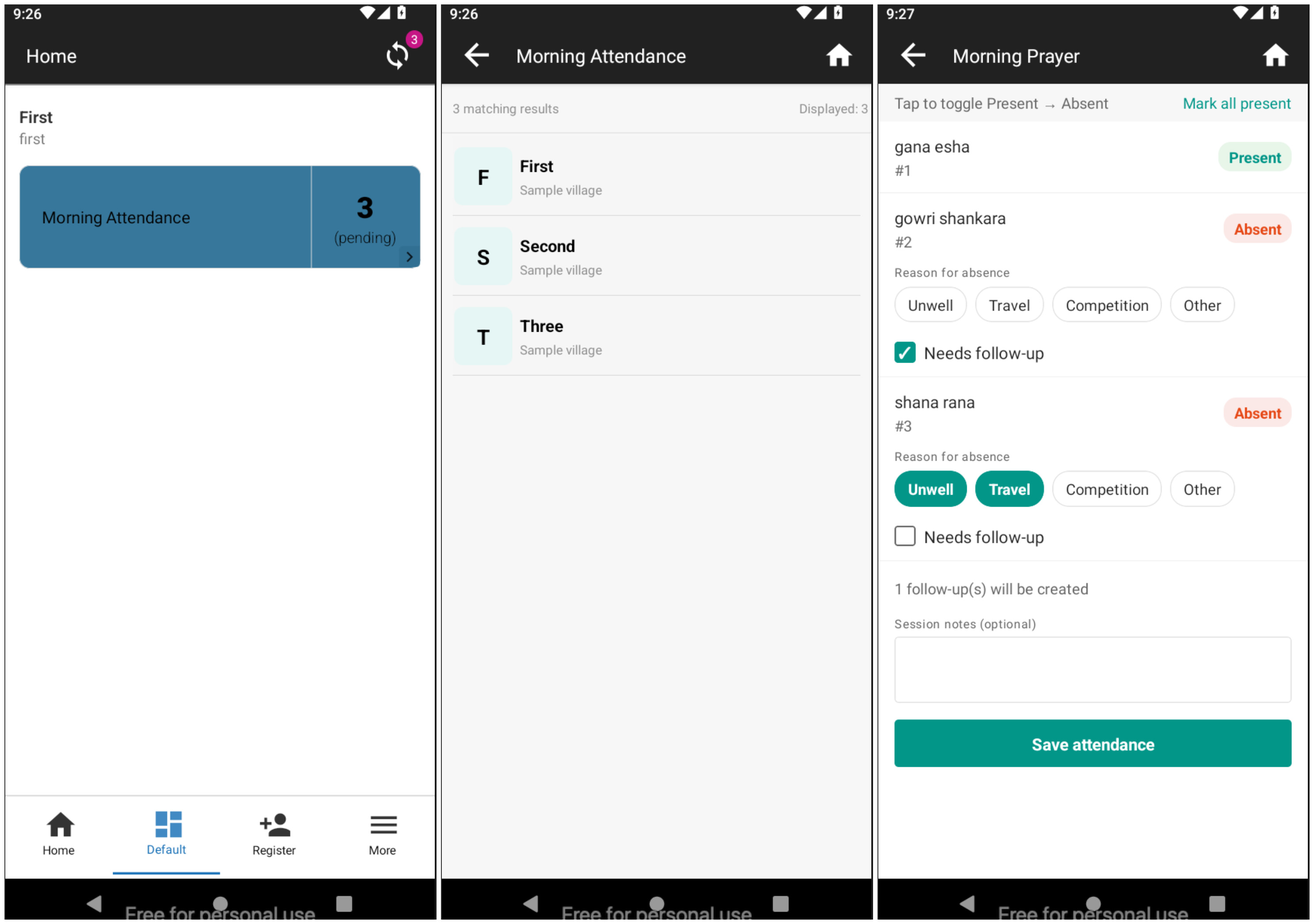
Tapping MARK opens the roster — one row per group member with a Present (default) / Absent toggle. When a student is toggled to Absent, inline Reason for absence chips appear beneath the row, sourced from this Attendance Type's Absence Reason concept — the worker can tap more than one. A separate Needs follow-up checkbox sits below the chips; ticking it flags the student for an auto follow-up encounter on save (if the Attendance Type has a follow-up encounter type configured). Reasons and the checkbox are independent — a student can have reasons with no follow-up, or a follow-up with no reason. A running summary above Save reads e.g. "1 follow-up(s) will be created".
Marking Didn't Happen
The DIDN'T HAPPEN action opens a single-screen reason picker — a required reason dropdown sourced from this Attendance Type's Session Outcome Reason concept, plus optional notes. Save creates a Session with status DidntHappen.
Mark anyway on holidays and weekly-offs
If the selected date is a public holiday or weekly-off per the resolved calendar, the type-picker rows show "Class not in session" with a Mark anyway action. Mark anyway proceeds to the marking flow but requires a reason (Session Outcome Reason concept) to capture why the override was made — for example, "Make-up class" on a Diwali.
Attendance shortcut cards (a daily worklist)
Marking from the group dashboard is per-class: open the class → tap Attendance → pick the type → mark. An organisation that runs several named attendances a day across many classes faces a lot of repetitive navigation, and nothing tells the worker which classes are still unmarked today.
The Mark attendance report-card action solves this. The implementer configures one dashboard card per attendance type; each card shows how many classes still have that attendance type unmarked for today, and tapping a class jumps straight into the attendance sheet for that class and attendance type, for today — then returns to the card on save so the worker can clear the next class.
- This is a report-card configuration layered on top of attendance — see the Mark Attendance Action section in Offline Cards and Custom Dashboards for the full setup, fields, and a sample "unmarked today" query.
- The deep-link into the attendance sheet is Android only for now. A Mark-attendance card still renders on the webapp's Data Entry App dashboards, but a row tap there opens the subject dashboard rather than the attendance sheet.
- Prerequisite: the target Group Subject Type must already have attendance enabled with at least one fully configured attendance type (everything above on this page).
Auto-created follow-ups (Needs follow-up)
When the worker saves a Held session, Avni inspects each Absent student's Needs follow-up checkbox. For any student where it is ticked AND this Attendance Type has a follow-up encounter type configured, the server (or the Android client, offline-first) creates a follow-up encounter on that student in the same transaction. The encounter is due today; the max-date is today + 2 days. The reason chips do not affect this — a follow-up is driven solely by the checkbox.
A confirmation dialog appears after the save, listing the students for whom a follow-up was created.
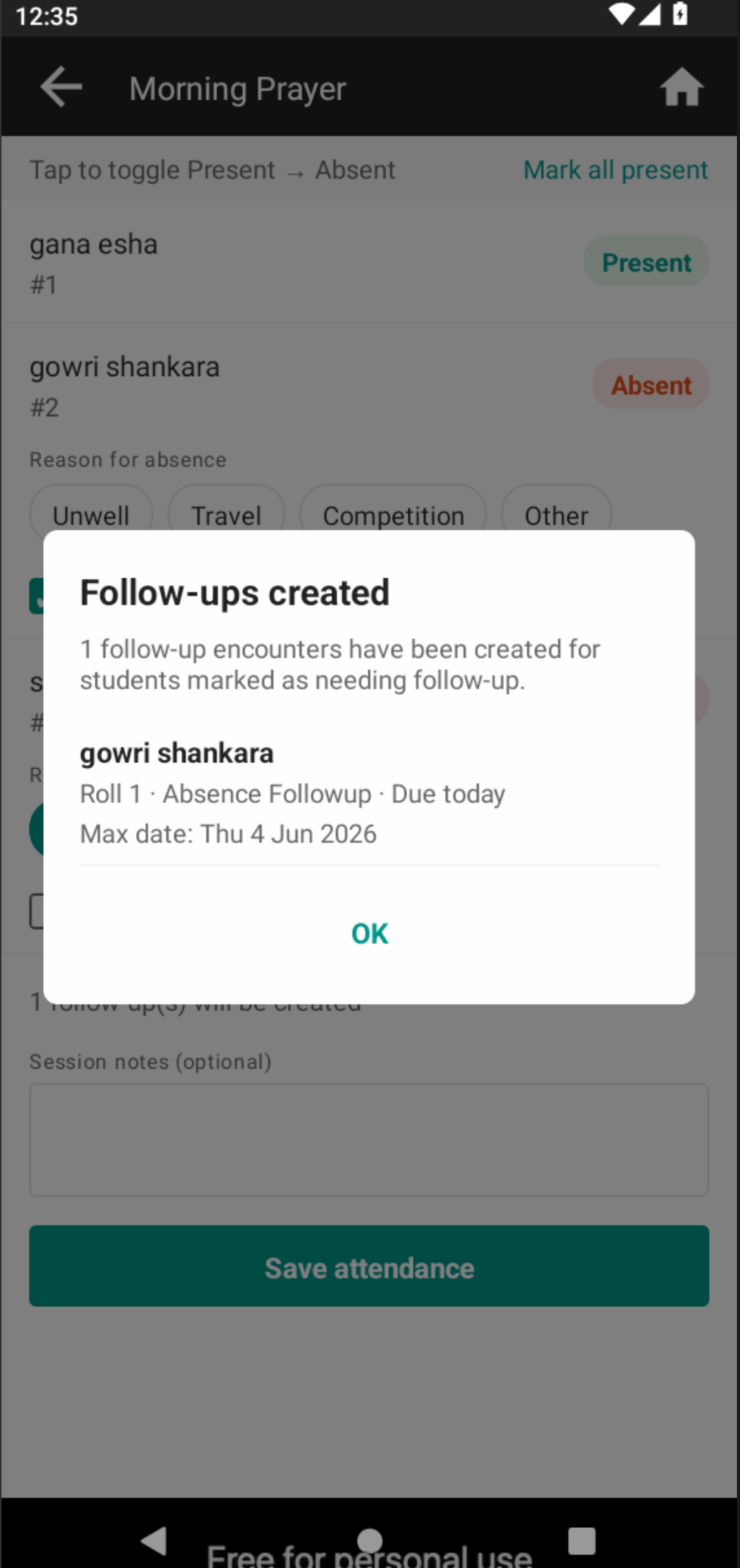
If the worker later corrects a Session (re-marks the student as Present, or unticks Needs follow-up), the previously-created follow-up encounter is automatically voided in the same transaction — unless the follow-up encounter has already been filled in (it has Observations), in which case it is left untouched and the dialog surfaces a warning.
Note: Each Attendance Type's follow-up encounter type is honoured independently. A student absent in two attendance types on the same day, where both types have follow-up configured, gets two follow-up encounters (one per type).
Sharing an attendance summary (Android only)
On any saved Session card on the Android dashboard, a Share button is visible. Tapping it opens a bottom sheet with "Share as PDF" and "Share as Text" options, which then invokes the Android system share sheet (WhatsApp, etc.). The share rule on the Attendance Type (if any) builds the content; otherwise a sensible default template is used.
If the Attendance Type has Auto-share on save enabled, the share sheet pops up automatically after every save of this type — the worker does not need to tap Share separately.
The Share button and Auto-share are Android only. They do not appear on the webapp.
Voiding a session
Each saved Session card has an overflow menu with a Void action. Voiding a Session also voids:
- All its Attendance Records (cascading).
- Any auto-created follow-up encounters linked from those records that are still unfilled (have no Observations).
Filled-in follow-up encounters are left untouched.
Bundle transferability
Attendance configuration — the Subject Type's enable attendance toggle, the list of Attendance Types, and each type's full config (reason concept references, follow-up encounter type reference, share rule, auto-share toggle) — rides along with Avni's app bundle export/import. Operational data — recorded Sessions and Attendance Records — does not travel via bundles.
Common questions
Why is saving my Subject Type failing?
You probably have one or more incomplete Attendance Types. Open the Attendance sub-block, check the warning banner under the types list, edit each named type to fill its Session Outcome Reason and Absence Reason concepts, then save.
Can I change an Attendance Type's follow-up encounter type later?
Yes. Prior auto-created encounters keep their original type (the link is preserved). New sessions saved after the change use the new type.
How is a follow-up encounter triggered for an absent student?
By the per-student Needs follow-up checkbox on the roster — not by the absence reason. The worker can record one or more reasons and independently decide whether the student needs a follow-up. Follow-ups are only created when the Attendance Type has a follow-up encounter type configured.
Can a student have more than one absence reason?
Yes. The per-student reason picker is multi-select — tap as many chips as apply.
What if a class doesn't meet on a particular day?
Two options. If the day is region-wide off (holiday or weekly off): mark a date marker on the calendar — see Calendars. If the day is off only for this one school (teacher absent, equipment failure): the field worker marks the session as Didn't Happen with a reason from the Session Outcome Reason concept. There is no per-group "meeting days" override.
Can attendance be marked on holidays?
Yes, via the Mark anyway affordance on the field worker's dashboard. A reason is required to capture why the override was made.
Can different attendance types share the same reason concept?
Yes. The two reason fields on each Attendance Type are independent — you can pick the same coded concept for multiple types, or pick different ones for each.
Does auto-share work on the webapp?
No. Both the manual Share button and the auto-share-on-save toggle are Android-only.
What's next
- Calendars — configure the working pattern and public holidays that attendance reports use.
- Concepts — create the coded concepts for Session Outcome Reason and Absence Reason.
- Writing rules — author a custom share rule.
- Access Control — grant
ManageCalendarsto user groups responsible for calendar maintenance.
Updated 5 months ago